<?xml version="1.0" encoding="UTF-8"?>
<rss version="2.0"
	xmlns:content="http://purl.org/rss/1.0/modules/content/"
	xmlns:wfw="http://wellformedweb.org/CommentAPI/"
	xmlns:dc="http://purl.org/dc/elements/1.1/"
	xmlns:atom="http://www.w3.org/2005/Atom"
	>

<channel>
	<title>Digital Photography Notes</title>
	<atom:link href="http://www.dpnotes.com/feed/" rel="self" type="application/rss+xml" />
	<link>http://www.dpnotes.com</link>
	<description>Links to Digital Camera, Photography and Accessories Reviews, Tips, Tricks, News, How-To's, Tutorials</description>
	<pubDate>Wed, 23 Jul 2008 08:41:17 +0000</pubDate>
	<generator>http://wordpress.org/?v=2.5.1</generator>
	<language>en</language>
			<item>
		<title>Panasonic FZ28 Accessories</title>
		<link>http://www.dpnotes.com/panasonic-fz28-accessories/</link>
		<comments>http://www.dpnotes.com/panasonic-fz28-accessories/#comments</comments>
		<pubDate>Tue, 22 Jul 2008 08:46:53 +0000</pubDate>
		<dc:creator>David Chin</dc:creator>
		
		<category><![CDATA[Panasonic Lumix DMC-FZ28]]></category>

		<guid isPermaLink="false">http://www.dpnotes.com/?p=317</guid>
		<description><![CDATA[Here's a list and description of optional accessories available for the Panasonic Lumix DMC-FZ28 digital camera.]]></description>
			<content:encoded><![CDATA[<p>Here's a list and description of the wide line of optional accessories available for the Panasonic Lumix DMC-FZ28 digital camera to expand shooting possibilities.</p>
<p><img src="http://www.dpnotes.com/wp-content/uploads/panasonic-fz28-and-accessories.jpg" alt="Panasonic FZ28 and accessories" border="0" width="500" height="375" /></p>
<p>A tele-conversion lens with 1.7x power (equivalent to 826.2mm on a 35mm film camera) and a close-up lens can be mounted using a lens adaptor.</p>
<p>An ND filter and new PL filter are also available to provide the FZ28 with true high-end camera capabilities.</p>
<p><strong>DMW-LPL46 PL Filter</strong></p>
<div class="inline">
<table>
<tr>
<td>
<center><br />
<a rel="nofollow" href="http://www.amazon.com/Panasonic-DMW-HDC2-Component-Cable-Adapter/dp/B0017TYGMG%3FSubscriptionId%3D0K1019RWK8CNM7CNZV82%26tag%3Ddpnotes-20%26linkCode%3Dxm2%26camp%3D2025%26creative%3D165953%26creativeASIN%3DB0017TYGMG"><img src="http://ecx.images-amazon.com/images/I/41USAVNi4qL._SL75_.jpg" width="75" height="56" alt=""></a><br />
</center>
</td>
<td><a rel="nofollow" href="http://www.amazon.com/Panasonic-DMW-HDC2-Component-Cable-Adapter/dp/B0017TYGMG%3FSubscriptionId%3D0K1019RWK8CNM7CNZV82%26tag%3Ddpnotes-20%26linkCode%3Dxm2%26camp%3D2025%26creative%3D165953%26creativeASIN%3DB0017TYGMG">Panasonic DMW-HDC2 Component Cable Adapter</a><br />
<br />
(<a href="http://www2.panasonic.com/consumer-electronics/shop/Supplies-Accessories/Cameras-Camcorders/Digital-Camera-Accessories/Other/model.DMW-HDC2_11002_7000000000000005702">official description</a>)<br />
<br />
This cable helps give a <a href="http://forums.dpreview.com/forums/read.asp?forum=1033&#038;message=28696275">much better video quality</a> when you connect your FZ28 to an HDTV set compared to what you'd get with a standard (yellow) video cable.</td>
</tr>
<tr>
<td>
<center><br />
<a rel="nofollow" href="http://www.amazon.com/Panasonic-DMW-LA3E-DMW-LA3-E/dp/B000ULPK2C%3FSubscriptionId%3D0K1019RWK8CNM7CNZV82%26tag%3Ddpnotes-20%26linkCode%3Dxm2%26camp%3D2025%26creative%3D165953%26creativeASIN%3DB000ULPK2C"><img src="http://ecx.images-amazon.com/images/I/116ClXLOOuL._SL75_.jpg" width="75" height="75" alt=""></a><br />
</center>
</td>
<td><strong><a rel="nofollow" href="http://www.amazon.com/Panasonic-DMW-LA3E-DMW-LA3-E/dp/B000ULPK2C%3FSubscriptionId%3D0K1019RWK8CNM7CNZV82%26tag%3Ddpnotes-20%26linkCode%3Dxm2%26camp%3D2025%26creative%3D165953%26creativeASIN%3DB000ULPK2C">Panasonic DMW-LA3 Lens Adapter</a></strong><br />
<br />
(<a href="http://www2.panasonic.com/consumer-electronics/shop/Supplies-Accessories/Cameras-Camcorders/Digital-Camera-Accessories/Lenses/model.DMW-LA3.O_11002_7000000000000005702">official description</a>)</td>
</tr>
<tr>
<td>
<center><br />
<a rel="nofollow" href="http://www.amazon.com/Panasonic-DMW-LT55-Conversion-Digital-Cameras/dp/B000F6Y686%3FSubscriptionId%3D0K1019RWK8CNM7CNZV82%26tag%3Ddpnotes-20%26linkCode%3Dxm2%26camp%3D2025%26creative%3D165953%26creativeASIN%3DB000F6Y686"><img src="http://ecx.images-amazon.com/images/I/41GDGB9RV5L._SL75_.jpg" width="61" height="75" alt=""></a><br />
</center>
</td>
<td><strong><a rel="nofollow" href="http://www.amazon.com/Panasonic-DMW-LT55-Conversion-Digital-Cameras/dp/B000F6Y686%3FSubscriptionId%3D0K1019RWK8CNM7CNZV82%26tag%3Ddpnotes-20%26linkCode%3Dxm2%26camp%3D2025%26creative%3D165953%26creativeASIN%3DB000F6Y686">Panasonic DMW-LT55 55mm Tele Conversion Lens</a></strong> (requires Lens Adaptor DMW-LA3 for attachment)<br />
<br />
(<a href="http://www2.panasonic.com/consumer-electronics/shop/Supplies-Accessories/Cameras-Camcorders/Digital-Camera-Accessories/Lenses/model.DMW-LT55.O_11002_7000000000000005702">official description</a>)</td>
</tr>
<tr>
<td>
<center><br />
<a rel="nofollow" href="http://www.amazon.com/Panasonic-DMW-LC55-Close-Digital-Cameras/dp/B000FTLN02%3FSubscriptionId%3D0K1019RWK8CNM7CNZV82%26tag%3Ddpnotes-20%26linkCode%3Dxm2%26camp%3D2025%26creative%3D165953%26creativeASIN%3DB000FTLN02"><img src="http://ecx.images-amazon.com/images/I/41093RK237L._SL75_.jpg" width="75" height="44" alt=""></a><br />
</center>
</td>
<td><strong><a rel="nofollow" href="http://www.amazon.com/Panasonic-DMW-LC55-Close-Digital-Cameras/dp/B000FTLN02%3FSubscriptionId%3D0K1019RWK8CNM7CNZV82%26tag%3Ddpnotes-20%26linkCode%3Dxm2%26camp%3D2025%26creative%3D165953%26creativeASIN%3DB000FTLN02">Panasonic DMW-LC55 55mm Close Up Lens</a></strong> (requires Lens Adaptor DMW-LA3 for attachment)<br />
<br />
(<a href="http://www2.panasonic.com/consumer-electronics/shop/Supplies-Accessories/Cameras-Camcorders/Digital-Camera-Accessories/Lenses/model.DMW-LC55.O_11002_7000000000000005702">official description</a>)</td>
</tr>
<tr>
<td>
<center><br />
<a rel="nofollow" href="http://www.amazon.com/Panasonic-DMW-LMC46E-DMW-LMC46-MC-Protector/dp/B000V7EHJM%3FSubscriptionId%3D0K1019RWK8CNM7CNZV82%26tag%3Ddpnotes-20%26linkCode%3Dxm2%26camp%3D2025%26creative%3D165953%26creativeASIN%3DB000V7EHJM"><img src="http://ecx.images-amazon.com/images/I/31yOzNjMd1L._SL75_.jpg" width="75" height="54" alt=""></a><br />
</center>
</td>
<td><strong><a rel="nofollow" href="http://www.amazon.com/Panasonic-DMW-LMC46E-DMW-LMC46-MC-Protector/dp/B000V7EHJM%3FSubscriptionId%3D0K1019RWK8CNM7CNZV82%26tag%3Ddpnotes-20%26linkCode%3Dxm2%26camp%3D2025%26creative%3D165953%26creativeASIN%3DB000V7EHJM">Panasonic DMW-LMC46 MC Protector</a></strong><br />
<br />
(<a href="http://www2.panasonic.com/consumer-electronics/shop/Supplies-Accessories/Cameras-Camcorders/Digital-Camera-Accessories/Filters/model.DMW-LMC46.O_11002_7000000000000005702">official description</a>)</td>
</tr>
<tr>
<td>
<center><br />
<a rel="nofollow" href="http://www.amazon.com/Panasonic-DMW-LND46E-DMW-LND46-ND-Filter/dp/B000ULJTWE%3FSubscriptionId%3D0K1019RWK8CNM7CNZV82%26tag%3Ddpnotes-20%26linkCode%3Dxm2%26camp%3D2025%26creative%3D165953%26creativeASIN%3DB000ULJTWE"><img src="http://ecx.images-amazon.com/images/I/31GQhtehuEL._SL75_.jpg" width="75" height="54" alt=""></a><br />
</center>
</td>
<td><strong><a rel="nofollow" href="http://www.amazon.com/Panasonic-DMW-LND46E-DMW-LND46-ND-Filter/dp/B000ULJTWE%3FSubscriptionId%3D0K1019RWK8CNM7CNZV82%26tag%3Ddpnotes-20%26linkCode%3Dxm2%26camp%3D2025%26creative%3D165953%26creativeASIN%3DB000ULJTWE">Panasonic DMW-LND46 ND Filter</a></strong><br />
<br />
(<a href="http://www2.panasonic.com/consumer-electronics/shop/Supplies-Accessories/Cameras-Camcorders/Digital-Camera-Accessories/Filters/model.DMW-LND46.O_11002_7000000000000005702">official description</a>)</td>
</tr>
<tr>
<td>
<center><br />
<a rel="nofollow" href="http://www.amazon.com/Panasonic-DMW-AC7-Adapter-Digital-Cameras/dp/B000FTLMW6%3FSubscriptionId%3D0K1019RWK8CNM7CNZV82%26tag%3Ddpnotes-20%26linkCode%3Dxm2%26camp%3D2025%26creative%3D165953%26creativeASIN%3DB000FTLMW6"><img src="http://ecx.images-amazon.com/images/I/41GDEQAC20L._SL75_.jpg" width="75" height="51" alt=""></a><br />
</center>
</td>
<td><strong><a rel="nofollow" href="http://www.amazon.com/Panasonic-DMW-AC7-Adapter-Digital-Cameras/dp/B000FTLMW6%3FSubscriptionId%3D0K1019RWK8CNM7CNZV82%26tag%3Ddpnotes-20%26linkCode%3Dxm2%26camp%3D2025%26creative%3D165953%26creativeASIN%3DB000FTLMW6">Panasonic DMW-AC7 AC Adapter</a></strong><br />
<br />
(<a href="http://www2.panasonic.com/consumer-electronics/shop/Supplies-Accessories/Cameras-Camcorders/Digital-Camera-Accessories/Batteries-Chargers-AC-Adapters/model.DMW-AC7.O_11002_7000000000000005702">official description</a>)</td>
</tr>
<tr>
<td>
<center><br />
<a rel="nofollow" href="http://www.amazon.com/Panasonic-CGR-S006A-1B-Battery-Digital/dp/B000E0DZH6%3FSubscriptionId%3D0K1019RWK8CNM7CNZV82%26tag%3Ddpnotes-20%26linkCode%3Dxm2%26camp%3D2025%26creative%3D165953%26creativeASIN%3DB000E0DZH6"><img src="http://ecx.images-amazon.com/images/I/41MM50YJV6L._SL75_.jpg" width="72" height="75" alt=""></a><br />
</center>
</td>
<td><strong><a rel="nofollow" href="http://www.amazon.com/Panasonic-CGR-S006A-1B-Battery-Digital/dp/B000E0DZH6%3FSubscriptionId%3D0K1019RWK8CNM7CNZV82%26tag%3Ddpnotes-20%26linkCode%3Dxm2%26camp%3D2025%26creative%3D165953%26creativeASIN%3DB000E0DZH6">Panasonic CGR-S006A/1B Li-ion Battery Pack</a></strong><br />
<br />
(<a rel="nofollow" href="http://www2.panasonic.com/consumer-electronics/shop/Supplies-Accessories/Cameras-Camcorders/Digital-Camera-Accessories/Batteries-Chargers-AC-Adapters/model.CGR-S006A/1B.O_11002_7000000000000005702">official description</a>)</td>
</tr>
<tr>
<td>
<center><br />
<a rel="nofollow" href="http://www.amazon.com/Panasonic-DMW-CZS7-Camera-Digital-Cameras/dp/B000FOXL8E%3FSubscriptionId%3D0K1019RWK8CNM7CNZV82%26tag%3Ddpnotes-20%26linkCode%3Dxm2%26camp%3D2025%26creative%3D165953%26creativeASIN%3DB000FOXL8E"><img src="http://ecx.images-amazon.com/images/I/51G0VKVDYAL._SL75_.jpg" width="68" height="75" alt=""></a><br />
</center>
</td>
<td><strong><a rel="nofollow" href="http://www.amazon.com/Panasonic-DMW-CZS7-Camera-Digital-Cameras/dp/B000FOXL8E%3FSubscriptionId%3D0K1019RWK8CNM7CNZV82%26tag%3Ddpnotes-20%26linkCode%3Dxm2%26camp%3D2025%26creative%3D165953%26creativeASIN%3DB000FOXL8E">Panasonic DMW-CZS7 Soft Camera Case</a></strong><br />
<br />
(<a href="http://www2.panasonic.com/consumer-electronics/shop/Supplies-Accessories/Cameras-Camcorders/Digital-Camera-Accessories/Camera-Cases/model.DMW-CZS7.O_11002_7000000000000005702">official description</a>)</td>
</tr>
</table>
</div>
<p><strong>DMW-CZ18 Camera Bag</strong> (<a href="http://www2.panasonic.com/consumer-electronics/shop/Supplies-Accessories/Cameras-Camcorders/Digital-Camera-Accessories/Camera-Cases/model.DMW-CZ18.O_11002_7000000000000005702">official description</a>)</p>
<p>Read more on the <a href="http://www.dpnotes.com/panasonic-fz28/">Panasonic FZ28</a>.</p>
]]></content:encoded>
			<wfw:commentRss>http://www.dpnotes.com/panasonic-fz28-accessories/feed/</wfw:commentRss>
		</item>
		<item>
		<title>Panasonic FZ28 reviews, sample photos and references</title>
		<link>http://www.dpnotes.com/panasonic-fz28/</link>
		<comments>http://www.dpnotes.com/panasonic-fz28/#comments</comments>
		<pubDate>Tue, 22 Jul 2008 08:43:25 +0000</pubDate>
		<dc:creator>David Chin</dc:creator>
		
		<category><![CDATA[Panasonic Lumix DMC-FZ28]]></category>

		<guid isPermaLink="false">http://www.dpnotes.com/?p=316</guid>
		<description><![CDATA[The Panasonic Lumix DMC-FZ28 digital bridge / prosumer camera was announced in July 2008 and is a replacement for the FZ18.]]></description>
			<content:encoded><![CDATA[<p>The Panasonic Lumix DMC-FZ28 digital bridge / prosumer camera was announced in July 2008 and is a replacement for the <a href="http://panasonicfz18.dpnotes.com/">FZ18</a>.</p>
<p><img src="http://www.dpnotes.com/wp-content/uploads/panasonic-lumix-dmc-fz28.jpg" alt="Panasonic Lumix DMC-FZ28" border="0" width="500" height="317" /></p>
<h3>Image samples</h3>
<h4>PopPhoto's FZ28 Sneak Preview</h4>
<p><img src="http://farm4.static.flickr.com/3064/2691615017_dce82e565f_o.jpg" alt="PopPhoto Panasonic FZ28 samples" border="0" width="500" height="249" /></p>
<p>PopPhoto has about <a href="http://www.popphoto.com/gallery.aspx?section_id=26&#038;section_prefix=cameras&#038;webtrends_section=cameras&#038;article_id=5442&#038;window_id=1&#038;gallery_id=1551&#038;page_number=1&#038;seq=1&#038;cnt=13&#038;slide=off">8 images</a> in their <a href="http://www.popphoto.com/cameras/5442/panasonic-lumix-dmc-fz28-sneak-peek.html">FZ28 sneak preview</a>.</p>
<p>The weather off Manhattan was a little hazy that day so a little contrast had to be added to the images in Photoshop.</p>
<p>You don't get to download any full-sized images but they did provide <a href="http://www.popphoto.com/gallery.aspx?section_id=26&#038;section_prefix=cameras&#038;webtrends_section=cameras&#038;article_id=5442&#038;window_id=1&#038;gallery_id=1551&#038;page_number=1&#038;seq=9&#038;cnt=18&#038;slide=off">cropped comparison slices</a> of ISO 100, 200, 400 and 800 photos.</p>
<h4>Official examples of pictures taken with the Panasonic FZ28</h4>
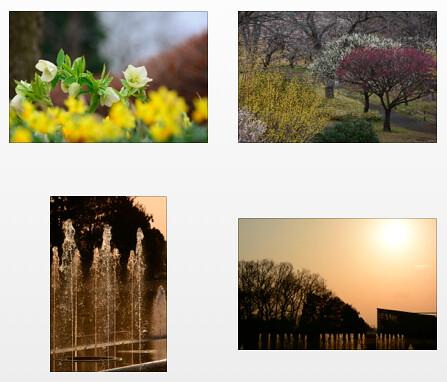
<p>Panasonic.jp has a gallery of <a href="http://panasonic.jp/dc/gallery/fz28.html">4 sample JPEG photos</a> for you to download.</p>
<p><img src="http://www.dpnotes.com/wp-content/uploads/official-panasonic-dmc-fz28-photos-1.jpg" alt="Official Panasonic DMC-FZ28 photos-1" border="0" width="500" height="98" /></p>
<p>The text is in Japanese, but Google's translation service output is surprisingly quite accurate in <a href="http://translate.google.com/translate?u=http%3A%2F%2Fpanasonic.jp%2Fdc%2Fgallery%2Ffz28.html&#038;hl=en&#038;ie=UTF8&#038;sl=ja&#038;tl=en">translating the camera settings into English</a>.</p>
<p>All were shot at ISO 100.</p>
<p>You'll get a good idea of skin tone from the <a href="http://panasonic.jp/dc/gallery/sample/fz28/P1000225.JPG">portrait sample</a>. This photo stands up very well to pixel-peeping - the skin texture looks natural and has wonderful tonality, overall detail is sharp, plentiful and doesn't display any hint of smearing from heavy-handed noise reduction.</p>
<p>The <a href="http://panasonic.jp/dc/gallery/sample/fz28/P1000496.JPG">cat's fur</a> is sharply-rendered, but I can see traces of chromatic aberration around the blades of grass in the background.</p>
<p>The image of a <a href="http://panasonic.jp/dc/gallery/sample/fz28/P1000553.JPG">butterfly on a lantana bloom</a> was taken at full telephoto zoom (486mm) and the amount of detail captured is just excellent.</p>
<p>The lotus flower photo is very good too - absolutely no complaints from me.</p>
<p>I find these set of images very much more superior in terms of image quality when compared to official samples shot with the older models from Panasonic - this is very encouraging indeed.</p>
<p>I do think these FZ28 photos are far better than what I can get with my <a href="http://olympussp570uz.dpnotes.com/">Olympus SP-570UZ</a>.</p>
<h4>Two portrait samples</h4>
<p><img src="http://www.dpnotes.com/wp-content/uploads/two-fz28-portrait-photos-at-panasonicnet.jpg" alt="Two FZ28 portrait photos at Panasonic.net.jpg" border="0" width="280" height="135" /></p>
<p>Panasonic.net has provided two full-sized <a href="http://panasonic.net/pavc/lumix/gallery/models/fz28.html">official FZ28 portrait samples</a> for download.</p>
<p>The <a href="http://panasonic.net/pavc/lumix/popup/gallery/models/fz28/P1010265.JPG">first portrait</a> is interesting because it shows you the amount of background blur you can get with the FZ28's lens zoomed in all the way to the max. 486mm and the aperture wide-open at f/4.4.</p>
<p>The <a href="http://panasonic.net/pavc/lumix/popup/gallery/models/fz28/P1010451.JPG">second portrait</a> shot at 117mm and f/4.0 has excellent sharpness, definition and detail.</p>
<h4>Full-sized FZ28 pics from Infosyncworld</h4>
<p><img src="http://www.dpnotes.com/wp-content/uploads/full-sized-fz28-photos-from-infosyncworld.jpg" alt="Full-sized FZ28 photos from Infosyncworld" border="0" width="423" height="104" /></p>
<p>You can <a href="http://www.infosyncworld.com/news/n/9605.html">download the photos from here</a>.</p>
<p>The pixels in this set look a tad bit unrefined when compared to the official samples, but I think the image quality is acceptable. We'd have to delve into the EXIF and understand the camera settings to make meaningful comparisons.</p>
<p>Skin tone in the <a href="http://www.infosyncworld.net/resources/products/panasonic/panasonic_lumix_dmc-fz28_s02.jpg">people shot</a> is very good, and that's saying a lot.</p>
<h3>Feature and specification highlights</h3>
<p><strong>Imaging sensor:</strong> 1/2.33-inch CCD.</p>
<p><strong>Resolution:</strong> 10.1 MP (megapixels). This compares with 8MP on the FZ18.</p>
<p><strong>Lens:</strong> Leica DC VARIO-ELMARIT. There are 11 elements in 8 groups, including 3 aspherical lenses and 2 ED lenses. The ED lenses minimize chromatic aberration that is likely to occur in telephoto images.</p>
<p><strong>Zoom and aperture range:</strong> 18x optical zoom, 27 - 486mm (35mm equivalent). f/2.8-4.4.</p>
<p>You get to also use the zoom range during motion picture (video / movie) recording.</p>
<p>When activated, an automatic crop mode (Extra Optical Zoom function) uses the center area of the CCD to capture a 3MP image giving you the impression of having a 32.1x optical zoom at your disposal. This cropping could have been done in an image editor (say Photoshop) but is a convenience to those who would rather have it done in-camera.</p>
<p><strong>Teleconverter:</strong> 1.7x (optional).</p>
<p><strong>Imaging engine:</strong> Venus Engine IV.</p>
<p><strong>Continuous burst mode:</strong> 13 fps (frames-per-second) in High Speed Burst Shooting mode. More specifically, in speed priority mode, you sacrifice resolution in order to gain speed - 13 fps in 2-megapixel (16:9) recording, 12 fps in 2.5-megapixel (3:2) recording and 11 fps in 3-megapixel (4:3) recording.</p>
<p>The FZ28 manages 2.5 fps in full resolution mode up to a maximum of 5 images in standard mode, or 3 images in fine mode.</p>
<p>Panasonic claims that the mechanical shutter mechanism on the FZ28 gives better image results than what you'd get from other cameras which use electronic shutter mechanisms</p>
<p>The newly-added Flash Burst mode makes it possible to take continuous shooting with continuous emission of flash up to a maximum of 5 images in 3-megapixel (4:3), 2.5-megapixel (3:2), 2-megapixel (16:9) recording.</p>
<p><strong>ISO range:</strong> Goes up to ISO 6400. At ISO 6400, you'll only get images in the following resolution and formats -  3-megapixel (4:3), 2.5-megapixel (3:2), 2-megapixel (16:9).</p>
<p><strong>Battery life:</strong> 460 photos on a single charge (CIPA).</p>
<p><strong>USB ports:</strong> Now supports 2.0 HS (compared to the FZ18).</p>
<p><strong>Internal memory:</strong> Increased to almost 50 MB (compared to the FZ18).</p>
<p><strong>Image stabilization:</strong> Panasonic's Mega O.I.S. is implemented in the FZ28, and has mode 1 and 2. In AUTO mode, the camera will automatically select either mode 1 or 2 depending on the zoom ratio being used.</p>
<p><strong>iA (intelligent auto) mode</strong></p>
<p>In this mode, the camera practically takes over and make automatic decisions for you such as activating Mega O.I.S. (Optical Image Stabilizer), Intelligent ISO Control, Intelligent Scene Selector, Face Detection, and Intelligent Exposure. This leaves the you free to simply compose the shot and press the shutter button.</p>
<p>The Intelligent Scene Selector will automatically select one of 5 scene modes - Macro, Portrait, Scenery, Night Portrait, and Night Scenery - that the camera thinks will best suit the shooting situation.</p>
<p>The newly added AF Tracking function automatically (and continuously) tracks the subject once the AF has been set. The autofocus is always "on" in that AF acquisition and tracking of the subject is performed even before the shutter button is pressed halfway.</p>
<p>The FZ28 continually monitors the light source and automatically activates the backlight compensation function if it detects that the light source is behind the subject.</p>
<p>Face detection accuracy has also been increased, allowing continuous AF/AE (auto focus / auto exposure) adjustment even if a face moves or turns sideways to the camera. Up to 15 faces can be simultaneously detected.</p>
<p>The Intelligent Exposure function automatically suppresses blocked shadows and blown highlights.</p>
<p><strong>Color bracketing:</strong> Three color styles of images - color, monochromatic and sepia - can be captured with a single press of the shutter button.</p>
<p><strong>Manual controls:</strong></p>
<p>The joystick on the rear of the Panasonic FZ28 lets you quickly make changes to manual focus, manual exposure and other settings:<br />
<img src="http://www.dpnotes.com/wp-content/uploads/joystick-on-the-rear-of-the-panasonic-fz28.jpg" alt="Joystick on the rear of the Panasonic FZ28" border="0" width="500" height="307" /></p>
<p>All the usual manual adjustment capabilities you'd expect in a camera of this class are there, plus a few other innovations.</p>
<p>In manual focus mode, the focal length and depth of field are displayed in accordance with the zoom range.</p>
<p>A custom setting function that lets you store up to 4 sets of frequently-used settings you often use in memory which can then be instantly recalled using the mode dial.</p>
<p><strong>Focusing:</strong> To match the shooting situation and subject's position, the user can select from six auto-focusing methods: AF tracking, face detection, multi, 1-point high-speed, 1-point normal-speed, and spot. With the 1-point AF or spot AF method, the auto-focusing area can be chosen freely from the entire field of view with the joystick or cursor button. Various group area patterns can also be selected in the Multi method.</p>
<p>Instant switching between AF and MF is available with the independent AF/MF button. The DMC-FZ28 is also equipped with AF Macro button and it activates the One-Shot AF function in MF mode with a single press of the button.</p>
<p><strong>Movie / video:</strong> High-definition (HD) 1280 x 720p motion images at 30 fps. An optional DMW-HDC2 HD Component Cable allows output from the FZ28 to be viewed directly on a HD-ready TV (HDTV). Sound can be recorded and the lens zoomed during movie capture. The file format used for movies is Motion JPEG.</p>
<p><strong>LCD:</strong> 2.7-inch LCD with 230,000-dot resolution. </p>
<p><strong>Electronic viewfinder:</strong> The viewfinder resolution has been increased to 201,600 dots.</p>
<p><strong>Dimensions:</strong> 117.6 x 75.3 x 88.9mm.</p>
<p><strong>Weight (with battery):</strong> Approximately 417g.</p>
<h3>Resources</h3>
<p><a href="http://www.dpnotes.com/panasonic-fz28-accessories/">Panasonic FZ28 accessories</a>.</p>
<h4>Official Panasonic FZ28 websites</h4>
<p><strong><a href="http://panasonic.net/pavc/lumix/fz28/index.html">Panasonic.net</a></strong><br />
<img src="http://www.dpnotes.com/wp-content/uploads/panasonic-fz28-at-panasonicnet.jpg" alt="Panasonic FZ28 at Panasonic.net" border="0" width="277" height="104" /><br />
There are animated Flash graphics showing how AF tracking works in iA (Intelligent Auto) mode (a <a href="">Quicktime video</a> is also available) and how the AF point can be moved with the joystick controller at the back of the camera.</p>
<p><strong><a href="http://www2.panasonic.com/consumer-electronics/shop/Cameras-Camcorders/Digital-Cameras/Lumix-Digital-Cameras/model.DMC-FZ28K_11002_7000000000000005702">Panasonic.com</a></strong></p>
<p><strong><a href="http://www.panasonic.co.uk/html/en_GB/1258590/index.html">Panasonic.co.uk</a></strong></p>
]]></content:encoded>
			<wfw:commentRss>http://www.dpnotes.com/panasonic-fz28/feed/</wfw:commentRss>
		</item>
		<item>
		<title>Excellent tutorial on how to set up multiple Canon flash units</title>
		<link>http://www.dpnotes.com/excellent-tutorial-on-how-to-set-up-multiple-canon-flash-units/</link>
		<comments>http://www.dpnotes.com/excellent-tutorial-on-how-to-set-up-multiple-canon-flash-units/#comments</comments>
		<pubDate>Tue, 22 Jul 2008 01:40:10 +0000</pubDate>
		<dc:creator>David Chin</dc:creator>
		
		<category><![CDATA[Photography Tips]]></category>

		<guid isPermaLink="false">http://www.dpnotes.com/?p=313</guid>
		<description><![CDATA[Charles E. Gardner teaches you how to properly set up your Canon flash guns for proper lighting.]]></description>
			<content:encoded><![CDATA[<p><img src="http://farm4.static.flickr.com/3185/2690555387_31ee0688c8_o.jpg" alt="Tutorial on multiple Canon flash units by Charles E. Gardner" border="0" width="468" height="70" /></p>
<p>Here's a quick link to a <a href="http://super.nova.org/DPR/Canon/MultiCanon/">Canon flash tutorial</a> written by Charles E. Gardner.</p>
<p>The article teaches you how to properly set up your <a href="http://www.amazon.com/gp/search?ie=UTF8&#038;keywords=Canon%20Speedlite%20Flash&#038;tag=dpnotes-20&#038;index=blended&#038;linkCode=ur2&#038;camp=1789&#038;creative=9325">Canon flash guns</a><img src="http://www.assoc-amazon.com/e/ir?t=dpnotes-20&amp;l=ur2&amp;o=1" width="1" height="1" border="0" alt="" style="border:none !important; margin:0px !important;" /> for proper lighting.</p>
<p>Almost everything you need to know about using multiple flash units is covered including ratios, how to mix in ambient lighting using slow shutter speeds, proper positioning for flattering portraits (oblique short lighting, full-face short lighting, flash for candid shooting), fill:key combination and other topics.</p>
<p>Thanks to Charles for not leaving any of the juicy bits out.</p>
<p>The article can be easily adapted for use with other flash systems.</p>
]]></content:encoded>
			<wfw:commentRss>http://www.dpnotes.com/excellent-tutorial-on-how-to-set-up-multiple-canon-flash-units/feed/</wfw:commentRss>
		</item>
		<item>
		<title>Noise reduction techniques in Nikon Capture NX 2</title>
		<link>http://www.dpnotes.com/noise-reduction-techniques-in-nikon-capture-nx-2/</link>
		<comments>http://www.dpnotes.com/noise-reduction-techniques-in-nikon-capture-nx-2/#comments</comments>
		<pubDate>Mon, 21 Jul 2008 08:19:27 +0000</pubDate>
		<dc:creator>David Chin</dc:creator>
		
		<category><![CDATA[Nikon Capture NX]]></category>

		<guid isPermaLink="false">http://www.dpnotes.com/?p=310</guid>
		<description><![CDATA[How to perform, or switch off, noise reduction in Nikon Capture NX 2.]]></description>
			<content:encoded><![CDATA[<p><em>Note: This post is applicable to images taken with the Nikon <a href="http://www.dpnotes.com/nikon-d300-reviews-and-samples/">D300</a>, <a href="http://www.dpnotes.com/nikon-d3/">D3</a> and <a href="http://www.dpnotes.com/nikon-d700/">D700</a>.</em></p>
<p>In this post, I show where you can turn off noise reduction in Nikon Capture NX 2, and two techniques for performing noise reduction (NR).</p>
<h3>Turn off Noise Reduction</h3>
<p>If you shoot RAW images with Noise Reduction turned on in-camera, you'll see that noise reduction is also applied when you open the NEF file in Nikon Capture NX 2.<br />
<img src="http://www.dpnotes.com/wp-content/uploads/noise-reduction-setting-sliders-in-nikon-capture-nx-2-1.jpg" alt="Noise reduction setting sliders in Nikon Capture NX 2" border="0" width="253" height="223" /></p>
<p>The graphic above pertains to the noise reduction setting sliders that you can access from the Edit List under <em>Develop > Camera Settings</em>. Note also that the intensity is set at 18 while the sharpness is set at 7. These are the default values if you had shot the image with in-camera High ISO noise reduction set at On (Normal).</p>
<p>To turn off noise reduction, simply remove the tick in the indicated checkbox.</p>
<h3>1st technique: Turn on "Better Quality" noise reduction</h3>
<p>The 1st technique simply involves putting a tick in the indicated checkbox (or leaving it on in the first place).<br />
<img src="http://www.dpnotes.com/wp-content/uploads/turning-on-better-quality-noise-reduction-in-nikon-capture-nx-2.jpg" alt="Turning on Better Quality noise reduction in Nikon Capture NX 2" border="0" width="257" height="238" /></p>
<p>Next, select the desired values for Intensity and Sharpness, and make sure you select Better Quality from the Method drop-down list (the default is Faster).</p>
<p>Even though this works well in most cases, there's something you need to know about the noise reduction Capture NX2 performs.</p>
<p>From the screenshot, you'll notice the words "Color Noise Reduction". You would expect that NX2 only performs chroma noise reduction, but if you look closely, you'll notice that luminance NR is also performed.</p>
<p>If you want only chroma NR to be performed without touching the luminance channel (a.k.a. detail), you'll have to employ the 2nd technique.</p>
<h3>2nd technique: Apply Noise Reduction as a New Step</h3>
<p>Using this method allows you to adjust the opacity of the luminance and chrominance effect of the noise reduction, which is similar to what you can do with Photoshop layers.</p>
<p>Firstly, make sure you turn off the default noise reduction in the <em>Develop > Camera Settings</em> section of the Edit list as explained near the beginning of this post. </p>
<p>Next, click on the New Step button found at the bottom of the Edit List:<br />
<img src="http://www.dpnotes.com/wp-content/uploads/new-step-button-at-the-bottom-of-the-edit-list.jpg" alt="New Step button at the bottom of the Edit List" border="0" width="101" height="33" /></p>
<p>You'll see a new Adjust section appear with an empty adjustment step (labeled '1. Select Adjustment'). Click on the Select Adjustment drop-down box and select Noise Reduction.<br />
<img src="http://www.dpnotes.com/wp-content/uploads/select-the-noise-reduction-adjustment.jpg" alt="Select the Noise Reduction adjustment" border="0" width="286" height="262" /></p>
<p>At this point, the labeling of adjustment step changes to '1. Noise Reduction'.</p>
<p>Next, set the desired parameter values. I normally enter 18 for intensity, 7 for sharpness as per the default values for Normal noise reduction. Don't forget to select Better Quality for Method.<br />
<img src="http://www.dpnotes.com/wp-content/uploads/set-desired-parameter-values-and-click-on-gray-arrow-next-to-opacity.jpg" alt="Set desired parameter values and click on gray arrow next to opacity.jpg" border="0" width="285" height="297" /></p>
<p>The next step is important. Click on the little gray arrow next to Opacity, and the noise reduction step will be expanded to show the following:<br />
<img src="http://www.dpnotes.com/wp-content/uploads/opacity-settings.jpg" alt="Opacity settings" border="0" width="273" height="113" /></p>
<p>Click on the All drop-down box, and select Luminance and Chrominance:<br />
<img src="http://www.dpnotes.com/wp-content/uploads/select-luminance-and-chrominance.jpg" alt="Select Luminance and Chrominance" border="0" width="239" height="151" /></p>
<p>Finally, adjust the opacity for the Luminance channel to zero, while leaving the opacity for the Chrominance channel at 100%:<br />
<img src="http://www.dpnotes.com/wp-content/uploads/luminance-zero-chrominance-100.jpg" alt="Luminance zero, chrominance 100" border="0" width="271" height="145" /></p>
<h3>Comparisons</h3>
<p>Here are 100% crops from an ISO 6400 photo taken with the D700 (<a href="http://nikond700.dpnotes.com/two-sets-of-nikon-d700-iso-6400-raw-nef-image-sample-files-for-download/">see this post for the original files</a>) - I'll leave it to you to decide which NR method you prefer. Personally, I would normally go for the 2nd technique of NR, but in this case, I thought the default NR method (1st technique) worked out to be better overall, despite the small loss in edge sharpness.</p>
<p><strong>Without noise reduction:</strong><br />
<img src="http://farm3.static.flickr.com/2088/2681277985_7d347a9cd1_o.jpg" alt="100% crop - Nikon D700 ISO6400 photo without Noise Reduction" border="0" width="481" height="646" /></p>
<p><strong>With better quality noise reduction:</strong><br />
<img src="http://farm4.static.flickr.com/3126/2681277977_5c2d395662_o.jpg" alt="100% crop - Nikon D700 ISO6400 photo with Noise Reduction (Better Quality setting)" border="0" width="481" height="646" /></p>
<p><strong>Noise reduction with luminance / chrominance channel blending adjustments:</strong><br />
<img src="http://farm4.static.flickr.com/3010/2681277983_5709f7f0f8_o.jpg" alt="100% crop - Nikon D700 ISO6400 photo with Noise Reduction and Blending Mode" border="0" width="481" height="646" /></p>
]]></content:encoded>
			<wfw:commentRss>http://www.dpnotes.com/noise-reduction-techniques-in-nikon-capture-nx-2/feed/</wfw:commentRss>
		</item>
		<item>
		<title>Digital Photography Tip - Break A Pattern</title>
		<link>http://www.dpnotes.com/digital-photography-tip-break-a-pattern/</link>
		<comments>http://www.dpnotes.com/digital-photography-tip-break-a-pattern/#comments</comments>
		<pubDate>Wed, 16 Jul 2008 03:08:51 +0000</pubDate>
		<dc:creator>David Chin</dc:creator>
		
		<category><![CDATA[Photography Tips]]></category>

		<guid isPermaLink="false">http://www.dpnotes.com/?p=300</guid>
		<description><![CDATA[I'd never read about this "Break A Pattern" tip before, so I thought I'd give it a shot.]]></description>
			<content:encoded><![CDATA[<p>BeyondMegapixels.com has a superb article titled "<a href="http://www.beyondmegapixels.com/2008/06/5-ways-to-hold-your-viewers-attention.html">5 Ways to Hold Your Viewer's Attention</a>".</p>
<p>Well what got my attention is Tip 5: I'd never read about this "Break A Pattern" method before, so I thought I'd give it a shot with a photo below, "Lens caps and an SDHC card":<br />
<a href="http://www.flickr.com/photos/davidchinphoto/2673346990/sizes/o/" title="View a 1024-pixel version of 'Lens caps and an SDHC card' on Flickr.com"><img src="http://farm4.static.flickr.com/3288/2673346990_d73d86a2a7.jpg" alt="Lens caps and an SDHC card" border="0" width="500" height="332" /></a></p>
<p>OK that was an extremely poor implementation of the tip, but I had to shoot something as soon as I read the article, otherwise I would tend to forget about it over time.</p>
<p>Shot settings and equipment for those interested:</p>
<ol>
<li>Nikon D300 on mirror lockup (MLU), aperture priority, ISO 200, f/8, 1/1.6s, and my <a href="http://nikond300.dpnotes.com/my-preferred-nikon-d300-camera-settings/">favorite settings</a>.</li>
<li><a href="http://www.dpnotes.com/sigma-150mm-macro-for-nikon/">Sigma 150mm f/2.8 macro for Nikon lens</a></li>
<li><a href="http://www.amazon.com/gp/redirect.html?ie=UTF8&#038;location=http%3A%2F%2Fwww.amazon.com%2FGitzo-GT1931-Basalt-3-Section-Tripod%2Fdp%2FB000RNJD94&#038;tag=dpnotes-20&#038;linkCode=ur2&#038;camp=1789&#038;creative=9325">Gitzo GT1931</a><img src="http://www.assoc-amazon.com/e/ir?t=dpnotes-20&amp;l=ur2&amp;o=1" width="1" height="1" border="0" alt="" style="border:none !important; margin:0px !important;" /> tripod</li>
<li><a href="http://tinyurl.com/2c9opv">Phottix Cleon N8</a> wireless RF remote control (real handy when shooting in mirror lockup mode - <a href="http://www.dpnotes.com/phottix-cleon-n8/">read the review</a>).</li>
</ol>
]]></content:encoded>
			<wfw:commentRss>http://www.dpnotes.com/digital-photography-tip-break-a-pattern/feed/</wfw:commentRss>
		</item>
		<item>
		<title>How to reduce color noise using Adobe Photoshop Lightroom</title>
		<link>http://www.dpnotes.com/how-to-reduce-color-noise-using-adobe-photoshop-lightroom/</link>
		<comments>http://www.dpnotes.com/how-to-reduce-color-noise-using-adobe-photoshop-lightroom/#comments</comments>
		<pubDate>Fri, 11 Jul 2008 03:53:58 +0000</pubDate>
		<dc:creator>David Chin</dc:creator>
		
		<category><![CDATA[Adobe Lightroom]]></category>

		<guid isPermaLink="false">http://www.dpnotes.com/?p=299</guid>
		<description><![CDATA[Adobe Photoshop Lightroom has a handy tool that you can use to quickly remove chroma (color) noise in photos.]]></description>
			<content:encoded><![CDATA[<p>Adobe Photoshop Lightroom has a handy tool that you can use to quickly remove chroma (color) noise in photos.</p>
<p>First, make sure the photo you want to perform the NR (noise reduction) on is already selected in the Library.</p>
<p><img src="http://farm4.static.flickr.com/3107/2656974407_f18c9bc9e1_o.jpg" alt="Locate the Color Noise Reduction tool in Adobe Lightroom" border="0" width="379" height="593" /></p>
<p><strong>Step 1:</strong> With the photo open in Lightroom, click Develop.</p>
<p><strong>Step 2:</strong> Grab the scroll bar on the right and scroll through the list of adjustments until you come to the Detail section. Click the screen capture below for a larger version.<br />
<a href="http://www.flickr.com/photos/davidchinphoto/2657790538/sizes/o/" title="View 'Color noise before chroma noise reduction in Adobe Lightroom' on Flickr.com"><img src="http://farm4.static.flickr.com/3105/2657790538_3458dd3672.jpg" alt="Color noise before chroma noise reduction in Adobe Lightroom" border="0" width="500" height="256" /></a><br />
Do you see the color noise on the white paintwork?</p>
<p><strong>Step 3:</strong> Adjust the Color slider in the Noise Reduction section until the chroma noise is reduced to a satisfactory level. Try not to go beyond what's necessary as too much reduction would de-saturate important color areas in the photo. Click the screen capture below for a larger version.<br />
<a href="http://www.flickr.com/photos/davidchinphoto/2657794284/sizes/o/" title="View 'Color noise after chroma noise reduction in Adobe Lightroom' on Flickr.com"><img src="http://farm4.static.flickr.com/3141/2657794284_56edc113b8.jpg" alt="Color noise after chroma noise reduction in Adobe Lightroom" border="0" width="500" height="256" /></a><br />
I had to use the value 70 for this photo.</p>
<p>Hope this helps, and let me know if you have any questions.</p>
]]></content:encoded>
			<wfw:commentRss>http://www.dpnotes.com/how-to-reduce-color-noise-using-adobe-photoshop-lightroom/feed/</wfw:commentRss>
		</item>
		<item>
		<title>How to reduce chromatic aberration using Adobe Photoshop Lightroom</title>
		<link>http://www.dpnotes.com/how-to-reduce-chromatic-aberration-using-adobe-photoshop-lightroom/</link>
		<comments>http://www.dpnotes.com/how-to-reduce-chromatic-aberration-using-adobe-photoshop-lightroom/#comments</comments>
		<pubDate>Thu, 10 Jul 2008 07:12:39 +0000</pubDate>
		<dc:creator>David Chin</dc:creator>
		
		<category><![CDATA[Adobe Lightroom]]></category>

		<guid isPermaLink="false">http://www.dpnotes.com/?p=298</guid>
		<description><![CDATA[Adobe Photoshop Lightroom has a handy tool that you can use to quickly remove chromatic aberration in photos.]]></description>
			<content:encoded><![CDATA[<p>Adobe Photoshop Lightroom has a handy tool that you can use to quickly remove chromatic aberration (CA) in photos.</p>
<p>First, click the thumbnail below to view a large version (open it up in a separate browser window if necessary) of the screen capture that I've done to show you the steps.</p>
<p><a href="http://www.flickr.com/photos/davidchinphoto/2654462753/sizes/o/" title="View 'How to reduce chromatic aberration using Adobe Photoshop Lightroom' on Flickr.com"><img src="http://farm4.static.flickr.com/3259/2654462753_62fb4dd963.jpg" alt="How to reduce chromatic aberration using Adobe Photoshop Lightroom" border="0" width="500" height="473" /></a></p>
<p>Do you see that there are traces of red / cyan CA around the edges of the building?</p>
<p><strong>Step 1:</strong> With the photo open in Lightroom, click Develop.</p>
<p><strong>Step 2:</strong> Grab the scroll bar on the right and scroll through the list of adjustments until you come to the Lens Correction section.</p>
<p><strong>Step 3:</strong> Adjust the  Red / Cyan chromatic aberration slider until as you see the CA disappear. Every photo is different, so it sometimes helps for you to make a big initial adjustment in one direction (cyan CA becomes red CA and vice versa) and then slowly go the other way until the CA is removed satisfactorily.</p>
<p><a href="http://www.flickr.com/photos/davidchinphoto/2654475309/sizes/o/" title="View 'No more CA after Adobe Photoshop Lightroom adjustment' on Flickr.com"><img src="http://farm4.static.flickr.com/3060/2654475309_e70cd7c218.jpg" alt="No more CA after Adobe Photoshop Lightroom adjustment" border="0" width="500" height="169" /></a></p>
<p>For this particular photo, I had to dial in a -10 for the red / cyan CA adjustment.</p>
<p>Hope this helps, and let me know if you have any questions.</p>
]]></content:encoded>
			<wfw:commentRss>http://www.dpnotes.com/how-to-reduce-chromatic-aberration-using-adobe-photoshop-lightroom/feed/</wfw:commentRss>
		</item>
		<item>
		<title>Sony W300 Reviews, Sample Photos and References</title>
		<link>http://www.dpnotes.com/sony-w300/</link>
		<comments>http://www.dpnotes.com/sony-w300/#comments</comments>
		<pubDate>Tue, 08 Jul 2008 06:36:42 +0000</pubDate>
		<dc:creator>David Chin</dc:creator>
		
		<category><![CDATA[Sony Cybershot DSC-W300]]></category>

		<guid isPermaLink="false">http://www.dpnotes.com/?p=297</guid>
		<description><![CDATA[The Sony Cybershot DSC-W300 is the world's first compact digital camera to offer a sensor with 13.6 Megapixels of resolution.]]></description>
			<content:encoded><![CDATA[<p>The <a href="http://sonyw300.dpnotes.com/">Sony Cybershot DSC-W300</a> is the world's first compact digital camera to offer a sensor with 13.6 Megapixels of resolution.</p>
<h3>Highlight features, specifications and capabilities</h3>
<p><img src="http://farm4.static.flickr.com/3198/2648353273_8b1c1c20e2_o.jpg" alt="Sony Cybershot DSC-W300 13.6MP Digital Camera with 3x Optical Zoom with Super Steady Shot" border="0" width="252" height="172" /><br />
<a href="http://www.amazon.com/gp/redirect.html?ie=UTF8&#038;location=http%3A%2F%2Fwww.amazon.com%2FSony-Cybershot-DSCW300-Digital-Optical%2Fdp%2FB00153WWRK&#038;tag=dpnotes-20&#038;linkCode=ur2&#038;camp=1789&#038;creative=9325">Sony Cybershot DSC-W300 13.6MP Digital Camera with 3x Optical Zoom with Super Steady Shot</a><img src="http://www.assoc-amazon.com/e/ir?t=dpnotes-20&amp;l=ur2&amp;o=1" width="1" height="1" border="0" alt="" style="border:none !important; margin:0px !important;" /></p>
<h4>Form factor</h4>
<p>The Cyber-shot W300 is a pocketable and compact digital camera designed with point-and-shoot simplicity.</p>
<h4>Memory / Storage</h4>
<p>The W300 has 16MB of internal memory.</p>
<p>You'll need to purchase Memory Stick Duo or Pro Duo cards for additional storage. </p>
<h4>Sensor</h4>
<p>13.6 MP CCD imager.</p>
<h4>Lens</h4>
<p>Carl Zeiss Vario-Tessar 3x optical zoom lens.</p>
<p>Zoom range is 35-105mm in 35mm equivalent terms.</p>
<h4>Optical viewfinder</h4>
<p>Yes.</p>
<h4>Titanium-clad body</h4>
<p>Ultra-hard titanium coating offers premium look and finishing while being highly-resistant to scratches and fingerprints.</p>
<h4>2.7" rear LCD screen</h4>
<h4>Image stabilization</h4>
<p>The W300 features Sony's Super SteadyShot optical image stabilization (meaning, in the lens rather than the sensor) to reduce the the occurrence of blurry photos resulting from handheld shots taken with low shutter speeds.</p>
<h4>ISO</h4>
<p>The W300 can automatically boost ISO to 6400 when you're taking photos in low-light conditions.</p>
<h4>Noise reduction</h4>
<p>The NR (noise reduction) strength is user-selectable from the following values: High, Low, Standard. Sony claims that with the Low setting, noise is reduced without sacrificing too much detail.</p>
<h4>HDTV output</h4>
<p>High-definition component output capability on the W300 means you can view photos on a compatible HDTV set.</p>
<h4>Continuous burst</h4>
<p>The W300 allows you to capture 3 MP photos at 5 fps (frames-per-second) when its on extra high-speed burst mode.</p>
<p>At full 13.6MP resolution, you can only capture 1.9 frames every second.</p>
<h4>Sony's Smile Shutter technology</h4>
<p>Sony claims that the camera is able to recognize faces in the scene and can be set to automatically take the photo the minute the subject smiles.</p>
<h4>Face detection technology</h4>
<p>With this feature, the W300 automatically adjusts exposure, AF (autofocusing), white balance and flash control for up to 8 faces in the scene.</p>
<h4>Intelligent scene recognition technology</h4>
<p>The W300 automatically selects the appropriate camera settings depending on one of five detectable scenes the camera is presented with.</p>
<p>An advanced mode allows you to take two photos in quick succession - one with automatic settings, and the other with optimized settings.</p>
<h4>Autofocus</h4>
<p>The W300 has 9 focus points.</p>
<p>There's a provision for optimized auto focus in macro ranges.</p>
<h4>Other image enhancement capabilities</h4>
<ol>
<li>5 color modes are available. One of them is the "Real" mode which applies less in-camera processing to photos and gives a more faithful color reproduction.</li>
<li>12 scene modes. There is an "Underwater" mode which adjust the camera's white balance so that your snorkeling or diving photos come out looking more natural, and not with the usual bluish tint.</li>
<li>D-Range Optimizer Plus adjusts the photo so that the darker, shadow areas are lightened up a bit, while detail in harsh highlights is retained as much as possible.</li>
</ol>
<h4>Weight without batteries</h4>
<p>156g (5.5oz) (187g with battery and an Memory Stick Duo card inserted)</p>
<h4>Dimensions</h4>
<p>94.3 x 59.0 x 26.8 mm (3.7 x 2.3 x 1.1in.)</p>
<h3>Resources</h3>
<p>Read <a href="http://sonyw300.dpnotes.com/">The Sony DSC-W300 Journal</a>.</p>
<h4>Sony W300 press release</h4>
<p>I like the <a href="http://www.dpreview.com/news/0802/08022501sonyw300.asp">version presented on DPReview.com</a>.</p>
<h4>Sony W300 Gallery at PBase.com</h4>
<p>When you're at the <a href="http://www.pbase.com/cameras/sony/dsc_w300">W300 gallery</a>, don't forget to hit your browser's refresh button to view the next set of random images.</p>
]]></content:encoded>
			<wfw:commentRss>http://www.dpnotes.com/sony-w300/feed/</wfw:commentRss>
		</item>
		<item>
		<title>Nikon Links</title>
		<link>http://www.dpnotes.com/nikon-links/</link>
		<comments>http://www.dpnotes.com/nikon-links/#comments</comments>
		<pubDate>Mon, 07 Jul 2008 10:42:27 +0000</pubDate>
		<dc:creator>David Chin</dc:creator>
		
		<category><![CDATA[Nikon]]></category>

		<guid isPermaLink="false">http://www.dpnotes.com/?p=296</guid>
		<description><![CDATA[This post gathers miscellaneous links to interesting Nikon-related information.]]></description>
			<content:encoded><![CDATA[<p>This post gathers miscellaneous links to interesting Nikon-related information.</p>
<ol>
<li>Joseph S Wisniewski is amazed how Nikon managed to launch so many <a href="http://forums.dpreview.com/forums/read.asp?forum=1021&#038;message=28510666">new, class-leading cameras, lenses and flashguns during the period of 2004 - 2008</a>.</li>
</ol>
<h3>Posts by Thom Hogan</h3>
<ol>
<li>
<blockquote>Indeed, one of the D3 sensor's high ISO gains comes from putting a <a href="http://forums.dpreview.com/forums/read.asp?forum=1020&#038;message=28530350">multistage amplifier</a> at the photosite, before read noise that comes downstream.</p></blockquote>
</li>
<li>A summary of <a href="http://forums.dpreview.com/forums/read.asp?forum=1039&#038;message=28530064">Nikon's technical accomplishments</a> in the eight years spanning the period from the introduction of the D1 right up to the <a href="http://nikond3.dpnotes.com/">D3</a> / <a href="http://nikond300.dpnotes.com/">D300</a> / <a href="http://nikond700.dpnotes.com/">D700</a>.</li>
<li>Thom Hogan explains why Nikon's exposure meter is the way it is, where <a href="http://forums.dpreview.com/forums/read.asp?forum=1034&#038;message=28406358">negative is towards the right</a>.</li>
<li>Thom Hogan reveals that there was a period of time (especially after the Nikon D2H fiasco) that <a href="http://forums.dpreview.com/forums/read.asp?forum=1021&#038;message=28293733">Nikon lost almost all their name photographers</a>.</li>
</ol>
]]></content:encoded>
			<wfw:commentRss>http://www.dpnotes.com/nikon-links/feed/</wfw:commentRss>
		</item>
		<item>
		<title>12-bit vs 14-bit RAW Captures</title>
		<link>http://www.dpnotes.com/12-bit-vs-14-bit-raw-captures/</link>
		<comments>http://www.dpnotes.com/12-bit-vs-14-bit-raw-captures/#comments</comments>
		<pubDate>Fri, 04 Jul 2008 02:59:19 +0000</pubDate>
		<dc:creator>David Chin</dc:creator>
		
		<category><![CDATA[Digital Photography Technology]]></category>

		<guid isPermaLink="false">http://www.dpnotes.com/?p=293</guid>
		<description><![CDATA[This is just a quick link to a forum discussion on the technical aspects of 12-bit vs 14-bit RAW captures.]]></description>
			<content:encoded><![CDATA[<p>This is just a quick link to a forum discussion on the <a href="http://forums.dpreview.com/forums/read.asp?forum=1021&#038;message=28190287">technical aspects of 12-bit vs 14-bit RAW captures</a>.</p>
<p><img src="http://farm4.static.flickr.com/3264/2634825285_d8b314c4a4_o.jpg" alt="12-bit vs 14-bit RAW captures: A technical discussion" border="0" width="500" height="64" /></p>
<p>I'll have to admit that I hardly understood a word of what was being discussed but you might find it useful to note that the main differences can only be observed in the darkest parts of the images.</p>
<p>Look especially for posts by ejmartin.</p>
]]></content:encoded>
			<wfw:commentRss>http://www.dpnotes.com/12-bit-vs-14-bit-raw-captures/feed/</wfw:commentRss>
		</item>
	</channel>
</rss>